

Learn how to set up, customize, and use Speechify AI step by step to convert text into natural-sounding speech and boost your reading productivity.
Step-by-Step Guide
Step 1: Open Speechify
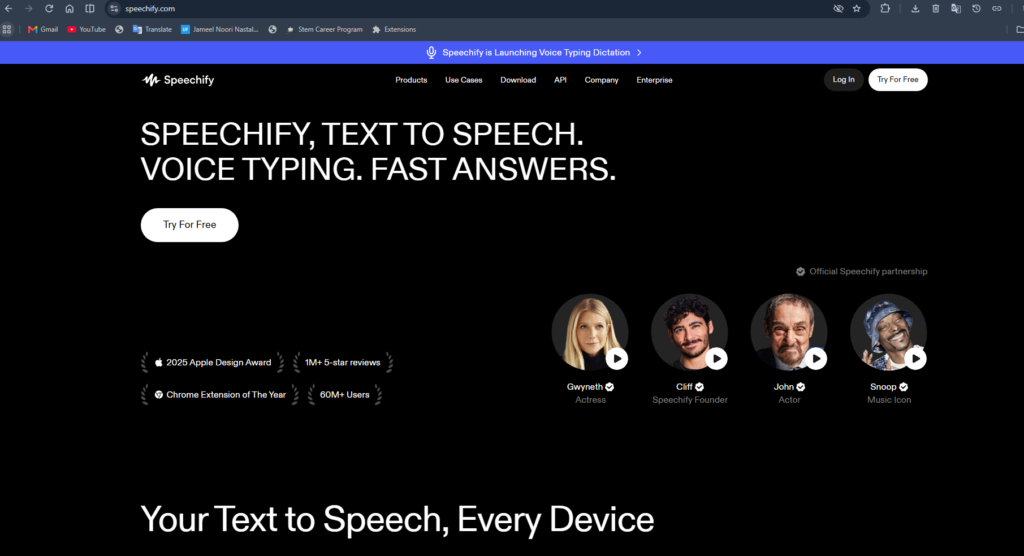
Open your preferred web browser and visit the Speechify website.
If you already have a Google account, click Sign In.
If you’re new to Google, create a free account before continuing.
Step 3: Import Content
You can import:
- PDF files
- Word documents
- Articles
- Websites
- Google Docs
- Typed or pasted text
Click Upload or Paste Text to add content.
Step 4: Select an AI Voice
- Open your document.
- Click the Voice dropdown.
- Choose your preferred narrator.
- Preview different voices before selecting one.
Step 5: Adjust Reading Speed
Use the speed slider to set playback from slower to much faster reading, depending on your preference.
Step 6: Start Listening
Step 7: Use AI Features (Optional)
Depending on your plan, you can:
- Generate AI summaries
- Ask questions about documents
- Create AI podcasts
- Use voice typing
- Convert documents into presentations or quizzes
Step 8: Install the Chrome Extension
- Open the Chrome Web Store.
- Click Add to Chrome.
- Pin the extension.
- Open any webpage.
- Click the Speechify icon.
- Press Play to have the page read aloud.