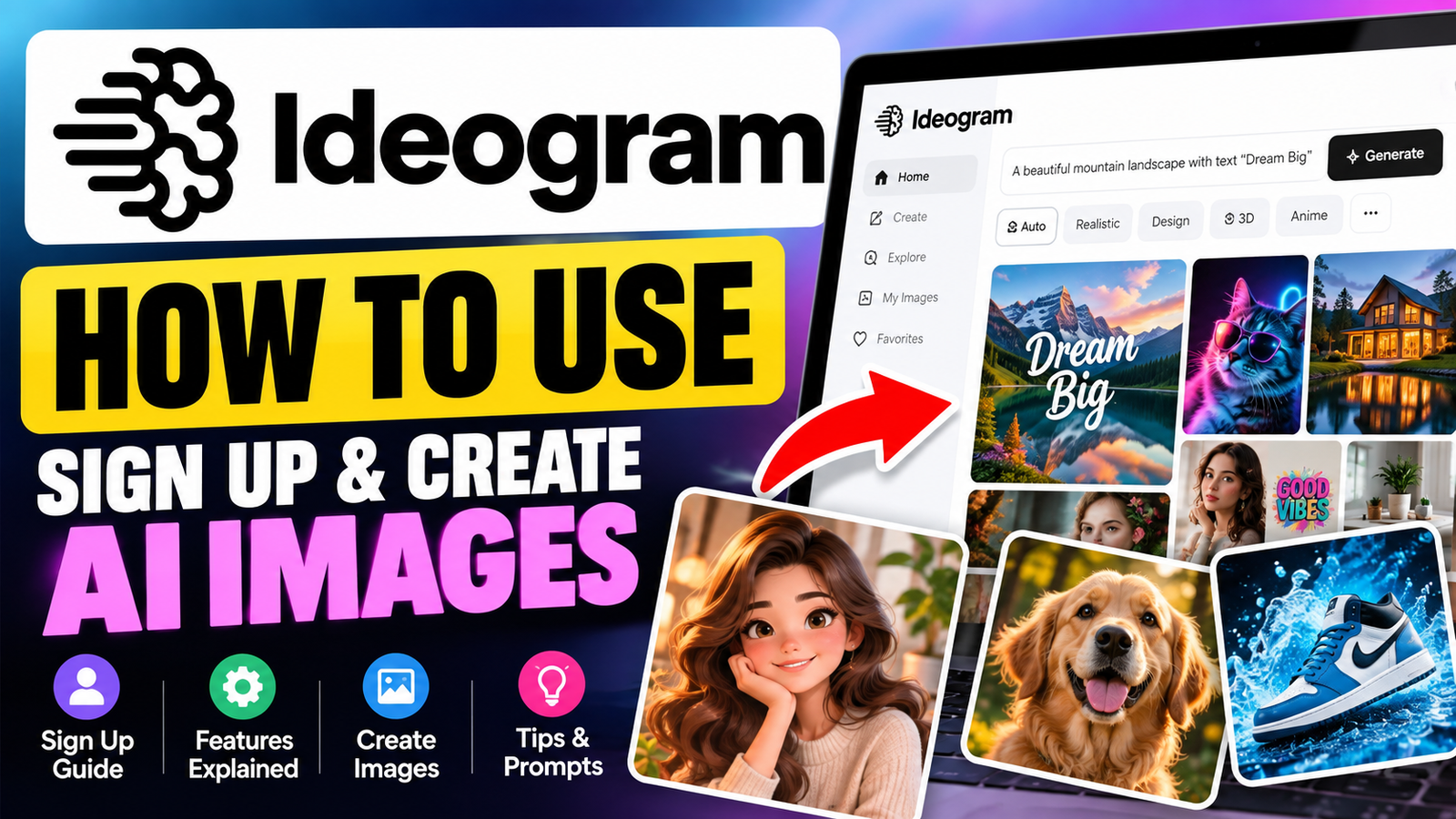
Turn a simple text prompt into a stunning visual in seconds, even without graphic design experience. This platform makes high-quality digital art accessible by linking complex software with your creative vision.
This ideogram ai tutorial guides you through the platform from start to finish. Learn to use the interface, write strong prompts, and adjust settings for the perfect result every time.
This guide can build your confidence in making professional-grade posters, logos, and illustrations. Whether you are a beginner or seasoned creator, this ideogram ai walkthrough gives you tools to bring unique ideas to life.
Key Takeaways
- Learn the complete process of account registration and initial setup.
- Master the art of writing descriptive prompts for better visual outputs.
- Discover how to utilize specific tools to refine your generated artwork.
- Understand the essential settings that influence image quality and style.
- Gain practical tips to troubleshoot common generation challenges effectively.
What Is Ideogram AI?
Ideogram AI connects your imagination with high-quality digital imagery. It is a generative artificial intelligence tool that turns written descriptions into unique visual outputs. With this ideogram ai guide, you can turn simple text into complex designs, illustrations, or artistic concepts without advanced technical skills.
“The future of creativity lies in the collaboration between human intent and machine intelligence.”
How Ideogram AI Works
The process starts when you enter a text prompt. The AI studies your words to understand the concepts, styles, and subjects you want. Then, it uses a complex neural network to create a custom image that matches your request.
You do not need to be a programmer to get great results. The system understands natural language, making it ideal for an ideogram ai tutorial for beginners about AI art. After processing, you receive a high-resolution image that reflects your original vision.
Who Can Use Ideogram AI?
This platform serves many users who need visual content quickly. Whether you are a professional marketer, freelance designer, or student, the tool adapts to your needs. It also helps business owners create unique branding materials or social media graphics.
Content creators often use it to make eye-catching thumbnails and blog headers. Because the interface is intuitive, anyone with a creative spark can produce professional-grade visuals right away. You need only a clear idea and a willingness to experiment with your prompts.
Key Features of Ideogram AI

Ideogram AI offers powerful tools that simplify digital design work. These ideogram ai features turn simple text prompts into professional visual assets for your projects.
AI Image Generation
At its core, the platform turns descriptive language into high-quality images. You can create everything from photorealistic portraits to abstract concept art with a few clicks. This helps you visualize complex ideas quickly and strengthens your creative toolkit.
Text and Typography Generation
One of the most impressive ideogram ai features is its accurate image text. Unlike many generators, it handles specific fonts, slogans, and labels with remarkable precision. This makes it ideal for branded social media graphics and custom posters with clear messages.
Image Editing and Customization
The platform gives you detailed control over each generated image. You can adjust specific settings to refine results and match your vision. These ideogram ai tools support a smooth workflow for logo designs and polished marketing assets.
Styles and Creative Options
You can choose from many artistic styles for any project. Options include cinematic lighting, 3D renders, and vintage illustrations. By testing these settings, you can make content stand out and show your brand identity.
How to Sign Up for Ideogram AI
This guide explains how to sign up for ideogram ai. Use this ideogram ai account setup guide to access powerful platform features within minutes.
Open the Official Ideogram Website
Start by opening the official Ideogram website in your preferred web browser. It is essential to use the legitimate domain to protect your personal information and stay secure. After the homepage loads, find the prominent sign-up or registration button, usually in the top right corner.
Choose a Sign-Up Method
After clicking the registration button, choose how to create an ideogram ai account. Most users link an existing Google account for a seamless one-click registration. You can also use a standard email address and secure password to keep accounts separate.
Complete Your Account Setup
After choosing a method, you may need to verify your email or provide basic profile information. Review your account details carefully, then finalize the process when everything is accurate. After confirmation, explore the platform; if issues occur, check your internet connection or refresh the page.
How to Log In to Ideogram AI

If you are a returning user, you may wonder how to log in to Ideogram AI efficiently. Use these steps to reopen your workspace and return to creative projects quickly.
Open the Ideogram Login Page
Always visit the official website before signing in. The correct URL helps protect your personal information from unauthorized third-party sites. On the homepage, find the login button in the top corner of your screen.
Enter Your Account Details
After you click the login button, you will see ways to access your account. Usually, choose the method you used during registration, such as a linked Google account or registered email address.
If you cannot access your dashboard, try these troubleshooting tips:
- Verify your internet connection to ensure a stable link to the server.
- Check that you are using the correct email address associated with your profile.
- Clear your browser cache if the page fails to load your workspace correctly.
- Use the “Forgot Password” link if you have misplaced your login credentials.
These steps help you resume work and explore the platform’s powerful features. Keep your login information secure to maintain a smooth, productive creative workflow.
How to Use Ideogram AI Step by Step
Learning how to use Ideogram AI is simple and can unlock your creative potential. Follow a clear process to turn simple text ideas into high-quality visual assets.
Step 1: Open the Image Generator
After you access your account, you will see the main dashboard. It is the primary interface for the ideogram ai image generator. Find the text input box at the top to begin.
Step 2: Write Your AI Prompt
Your input strongly affects the output. In this ideogram ai image generator tutorial, describe your subject, artistic style, and any text you want in the image.
Step 3: Choose Image Settings
Before sending your request, review the settings panel near the prompt box. This ideogram ai step by step guide suggests choosing an aspect ratio for your intended use. Use portrait for social media or landscape for presentations. You can also select model versions to refine the artistic output.
Step 4: Generate Your Image
Click the generate button to start rendering. When learning how to generate images using ideogram ai, inspect the results carefully once they appear. Check for:
- Composition: Does the layout look balanced and professional?
- Readability: Is the text clear and free of spelling errors?
- Subject Accuracy: Does the image match your original description?
- Alignment: Are the colors and lighting consistent with your vision?
If the result is not perfect, do not worry. Tweak your prompt or adjust the settings to refine the output until it meets your exact standards.
How to Write Better Ideogram AI Prompts

Prompt engineering helps unlock the full potential of your creative projects. Specific instructions help the model understand your vision more accurately. Effective ideogram ai prompts help you move beyond basic results and create professional-grade imagery.
Use Clear and Detailed Descriptions
Output quality depends on the detail you provide. Replace vague terms with vivid adjectives and clear context. A strong prompt usually includes these elements:
- Subject: Clearly define the main focus, such as a person, object, or landscape.
- Action: Describe what the subject is doing or how they are interacting with the environment.
- Setting: Provide context for the location, whether it is a futuristic city, a cozy library, or a natural forest.
- Mood: Use words like “ethereal,” “gritty,” “vibrant,” or “minimalist” to set the emotional tone.
Specify Style, Composition, and Lighting
To control your ideogram ai text to image results, define the scene’s technical details. Think like a photographer or digital artist when building your request. These factors can shape the final look:
- Composition: Mention the framing, such as “close-up,” “wide-angle shot,” or “rule of thirds.”
- Lighting: Define the light source, such as “golden hour,” “soft studio lighting,” or “dramatic neon glow.”
- Color Palette: Suggest a specific color scheme, like “monochromatic blue” or “warm earth tones.”
- Visual Style: Indicate if you want a “photorealistic,” “oil painting,” “3D render,” or “vector illustration” aesthetic.
Include Accurate Text Instructions
This platform can render text inside images. For words on a sign, shirt, or logo, be explicit and clear. Always put displayed text inside quotation marks so the AI treats it as a separate instruction.
“Precision in your wording is the bridge between a generic output and a masterpiece that perfectly captures your intent.”
Combine descriptive subjects with precise typography instructions to create a design that looks good and works well. Check spelling and capitalization in your prompt to help prevent errors in generated text. Careful details separate high-quality designs from simple AI experiments.
Ideogram AI Use Cases
Knowing how to create images with Ideogram AI helps your business explore creative options. Content creators and small business owners can make high-quality visuals that attract attention. Adjust your prompts to match each professional need.
Social Media Graphics
To learn how to create AI images with Ideogram for Instagram or LinkedIn, choose aspect ratios that fit each feed. Use bright colors and clear focal points so your message reaches your audience.
Posters and Marketing Designs
Promotional materials need a clear visual order that guides the viewer’s eye. When designing posters, make sure text stays readable against the background. The platform’s strength is Clear typography, which suits event flyers and digital advertisements.
Logos and Branding Concepts
Use this tool to explore unique brand identities and color palettes. Although the AI offers strong starting points, logos often need professional refinement before commercial use. Treat each output as a concept draft, then polish it in vector software.
- Consistency: Maintain a unified style across all your brand assets.
- Legibility: Check that any generated text is clear and easy to read.
- Customization: Use specific prompts to match your existing brand colors.
- Refinement: Edit your final designs to ensure they meet high-resolution standards.
Blog and Website Images
Your website needs images that tell stories and support written content. By learning how to create ai images with Ideogram, you can make custom illustrations that fit your brand voice. These visuals break up long text blocks and keep visitors engaged longer.
Ideogram AI Free vs Paid Plans

Your choice to upgrade depends on your creative goals and how often you use the tool. Many users first test the ideogram ai free image generator to see how it handles complex prompts and typography.
What You Get With the Free Plan
The free tier offers a comprehensive introduction to the platform’s capabilities. You can test different styles and text-heavy designs without paying upfront.
This plan suits hobbyists and people who create images only sometimes. It lets you explore core tools and learn to improve prompts for better results.
What Paid Plans Offer
As your creative needs grow, paid subscriptions can make your workflow easier. They often offer faster generation speeds and priority access during busy hours. These benefits help keep projects on schedule.
Subscribers usually get better image management tools and higher usage limits. These ideogram ai features and benefits matter when using the tool for professional branding or regular social media content.
Test the free version fully before choosing a paid plan. After learning the interface and your output needs, you can choose the tier that best fits your lifestyle.
Pros and Cons of Ideogram AI
Knowing Ideogram AI’s strengths and weaknesses can help you decide if it suits your creative workflow. The platform supports visual storytelling, but you should understand its current abilities and limits.
Pros
A major benefit of this platform is its exceptional typography generation. It places text in images accurately, making it a strong choice for branding and graphic design.
The interface is highly beginner-friendly, so you can create professional visuals without a steep learning curve. The platform supports creative experimentation in a sandbox where you can test styles and compositions quickly.
The tool makes high-quality image creation available to people with any technical background. It helps users create unique assets for social media or marketing campaigns on tight schedules.
Cons
Despite its strengths, you may see inconsistent outputs during your sessions. You may need several rounds of prompt changes to achieve your exact vision.
You should also know about the limitations inherent in the free plan. It may limit your daily image count or access to advanced features. These limits can hinder large-scale projects that need many images.
Finally, you should carefully check all generated content before using it professionally. AI may create artifacts or errors, so human review remains necessary.
Tips for Getting Better Results With Ideogram AI

If you are wondering how to use Ideogram AI for beginners, these tips can help you succeed. Creating strong visuals takes patience, testing, and repeated improvement. With practice, you can turn simple ideas into striking digital art.
The best way to improve is to test one change at a time. When you change your prompt, keep its main elements stable. Then you can see how each change affects the final output. This method prevents confusion and shows which words produce the best results.
Clear communication matters when you describe your visual priorities. Use details such as lighting, composition, and artistic style to guide the AI. If the first results seem wrong, refine your wording by replacing vague terms with clear, descriptive adjectives.
Use these practices to improve your workflow:
- Check your text carefully: Ensure that any requested words are spelled correctly within your prompt.
- Compare multiple variations: Generate several versions of the same prompt to see how the AI interprets different creative angles.
- Save effective patterns: Keep a library of prompts that work well so you can reuse them for future projects.
- Adapt for different goals: Modify your saved templates to fit new audiences, formats, or specific branding needs.
Learning how to use Ideogram AI for beginners takes time and practice. As you learn the interface, your ability to write precise prompts will grow. Keep experimenting, stay creative, and enjoy bringing your unique visions to life.
Frequently Asked Questions About Ideogram AI

New creative tools often raise questions about access and features. These answers explain costs and how to start your first project.
Is Ideogram AI free to use?
Yes, the platform offers a free tier that lets you generate a limited number of images each day. It lets you test the tool and explore its creative potential without spending money.
For advanced features or higher generation limits, upgrade to a paid subscription plan. These plans suit power users who need steady access to premium tools and faster processing.
How do I create an Ideogram AI account?
Creating an account takes only a few minutes. Sign up with your email address or link a supported third-party account for faster registration.
After sign-up, you get immediate access to the dashboard. Then, try your first prompts and explore the available artistic styles.
Can Ideogram AI generate text in images?
One of the platform’s impressive features is its ability to render text accurately within images. Unlike many other AI tools, it is optimized to render typography, signs, and labels precisely.
This makes it useful for logos, posters, and social media graphics needing specific words. Include your desired text in the prompt, and it will appear in the final image.
Can I use Ideogram AI on mobile?
You can access the platform on your mobile device. As a web-based application, it runs in your smartphone’s browser without a dedicated app.
You can create high-quality images while traveling. Log in through your mobile browser to continue where you stopped on your desktop.
Final Thoughts on Ideogram AI
Mastering Ideogram AI changes how you handle digital design and visual storytelling. You now know how to set up an account, log in safely, and write precise prompts for high-quality results.
Success with this platform depends on clear instructions and settings suited to each project. Treat every generation as a step in an ongoing process. Review each result carefully to sharpen your creative vision over time.
Begin by testing basic workflows before exploring complex typography or advanced artistic styles. Try different parameters to understand the tool’s full potential for your branding or social media needs.
Keep this guide as a trusted reference when you need to refresh your skills. Your creative work will improve as you practice these techniques and use them in professional design tasks.