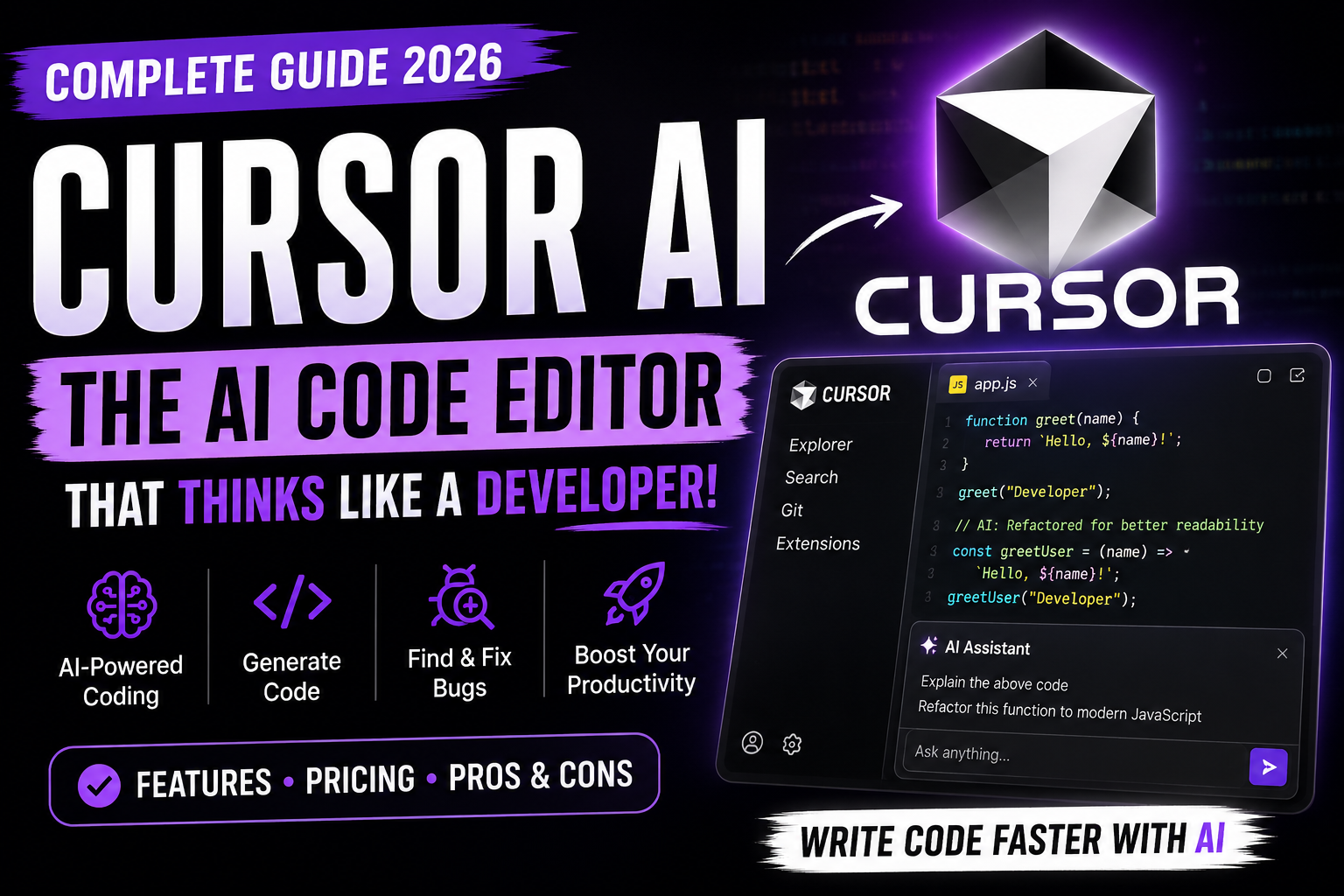
Imagine making software by just talking about it. The world of coding is changing fast. Now, developers use smart tools to work faster and better.
This guide will show you how to use Cursor AI in 2026. We’ll cover how to set it up, its main features, and how to save money. It’s perfect for both new and experienced coders. This AI tool will make your work easier and faster.
Key Takeaways
- Learn how to integrate modern coding assistants into your existing development environment.
- Discover how to use advanced prediction features to write code faster.
- Understand the current pricing models for professional coding tools in 2026.
- Master debugging techniques that save hours of manual troubleshooting.
- Get practical advice on optimizing your daily coding workflow for maximum efficiency.
What is Cursor AI?
Modern software development is changing fast, and Cursor AI is leading the way. It’s a specialized artificial intelligence typing assistant built into your coding space. Unlike regular text editors, it gets your project’s context to offer smart suggestions.
Overview of Cursor AI
Cursor AI is based on the popular VS Code editor but with a twist. It uses deep learning to let you work with your code in natural language. This makes complex tasks easier. It also guesses your next action as you type.
This tool is more than just an autocomplete feature. It’s a collaborative partner for coding, debugging, and writing in many languages. It fits your coding style, whether you’re working on a small script or a big app.
Its Purpose and Benefits
The main goal of this artificial intelligence typing assistant is to make your workflow smoother. It cuts down on repetitive tasks, letting you focus on the big picture. Using Cursor AI can make you code faster and better.
Here are some key benefits of using Cursor AI:
- Accelerated Code Creation: Make boilerplate code and complex functions quickly.
- Enhanced Troubleshooting: Find bugs and get smart fixes right away.
- Context-Aware Editing: Update code with a deep understanding of your project.
- Improved Learning Curve: Get help with tricky code through chat features.
Unlike general productivity tools, Cursor AI is made for software engineering. It sees your code as a dynamic entity, ensuring every suggestion is right and logical.
Main Features of Cursor AI
Modern software development needs tools that fit your coding style and project needs. Cursor AI offers a sophisticated environment that predicts your next move. This lets you focus on the big picture, not just fixing syntax errors.

Intelligent Code Suggestions
This platform is like a smart typing software that learns from your code. It gives you suggestions that understand the context, not just predict text.
- Predictive Autocomplete: It suggests whole blocks of code based on your file structure.
- Refactoring Assistance: It helps clean up messy or redundant code.
- Error Detection: It finds bugs before you even run your script.
Real-Time Collaboration Tools
Team work gets easier with tools that sync instantly. Cursor AI lets you share your workspace. This keeps everyone on the same page with project goals.
These features help reduce the hassle of remote development. With this smart typing software, you spend less time on manual coordination. You can focus more on solving problems together.
Extensive Language Support
The platform is versatile, making it great for different tech stacks. It works well with both old and new systems, adapting to your needs.
- Multi-Language Compatibility: It supports Python, JavaScript, TypeScript, Go, and more.
- Framework Integration: It knows popular libraries like React, Django, and Node.js.
- Customizable Environments: You can set up your settings to fit your project’s syntax and formatting.
Cursor AI helps you build strong apps faster and more accurately. Your daily tasks will be easier as the software takes care of the hard parts.
Getting Started with Cursor AI
Starting your journey with Cursor AI is easy. Just a few steps to set up your workspace. This ensures the software works best from the start.
Setting Up Your Account
First, go to the official website and create an account with a valid email. You’ll need to allow the tool to access your files and repositories.
Make sure to review these access requests carefully. This lets the platform help you better. After verifying your account, you can set up your preferences for programming languages and project structures.
Installing the Browser Extension
Next, install the browser extension. It connects your web tasks to your code editor. This is key for using predictive text technology in your browser.
Just search for the official plugin in your browser’s store and install it. Then, restart your browser to start using it. This makes your coding faster and easier.
Remember to pin the extension to your toolbar. This keeps Cursor AI always ready to help with suggestions or code completions.
How to Use Cursor AI Effectively
Getting the most out of Cursor AI is more than just accepting code suggestions. It’s about seeing it as a partner in your development work. This way, you keep your code clean, safe, and working well.
Leveraging Autocompletion Features
The heart of Cursor AI is its predictive text technology. Don’t just hit “tab” for every suggestion. Make sure the code fits your project’s goals. This careful check keeps your project organized and under control.
Clear prompts lead to better code. When you give specific details or comments, the AI gives you more accurate suggestions. This makes predictive text technology a trusted helper that gets your coding style and needs.
Customizing Your User Experience
Customizing your editor can greatly improve your work. Cursor AI lets you set up your workspace to fit your habits. This makes it a great tool for AI for faster typing. By adjusting settings, you work more smoothly and creatively.
Think about setting up special settings for each project. Use AI for faster typing by creating shortcuts that match your goals. When the tool fits your workflow, you work more efficiently, even on tough projects.
Pricing Plans for Cursor AI
Exploring the different plans of Cursor AI is key for developers. It’s about finding the right fit based on your needs and how much you use automated tools.
Free vs. Paid Versions
The free version is great for beginners. It lets you try out the keyboard prediction software without spending money. You can see how it works with your coding style.
The paid plans offer more features and faster access to top models. They’re for those who need constant, fast help all day. Upgrading means you can work on bigger projects without interruptions.
Value for Money Comparison
Figuring out if a plan is worth it depends on your projects. If you’re a casual coder or student, the free version might be enough. But for pros, the time saved with Cursor AI is often worth the cost.
Think about your projects’ complexity when choosing. Paid plans are best for big, important projects. They help you stay focused during long work hours. The right plan matches your current and future goals.
User Interface and Experience
Working with complex code needs tools that feel like part of your workflow. When you open Cursor AI, you see a layout that cuts down on hassle. It lets you focus more on solving problems than on managing tools.
The design is clear, keeping your key files and commands easy to find. This makes it easier to stay in the zone while coding. You can keep your focus on your work without interruptions.
Navigational Features
Searching for commands or files in a big project can be tough. This platform makes it easier with a fast search and command palette. It knows what you need before you do.
You can quickly move between different parts of your code or search your whole directory. This control means you spend less time looking for things. You can write better code faster.

“The best interface is the one that disappears, allowing the creator to focus entirely on the craft.”
Design Aesthetics and Usability
The look of this smart typing software is simple and doesn’t get in the way. It’s perfect for long coding sessions. The editor uses a machine learning typing tool to fit your coding style. It makes suggestions that are useful, not distracting.
The platform is easy to use because it manages your project well. As a smart typing software, it learns your habits. It gives you code suggestions that save you time.
The machine learning typing tool makes everything smooth. Whether you’re new or experienced, Cursor AI makes sure your tools help you. They don’t get in the way of your goals.
Cursor AI for Different Users
The use of Cursor AI varies based on your job and daily tasks. It’s not just for tech work. It helps many people in different fields. Knowing how others use it can make your experience better.

Programmers and Developers
Cursor AI is a big help for software developers. It predicts code and suggests big chunks of it. This lets you focus on the big picture.
- Automated code refactoring to improve performance.
- Real-time debugging suggestions for common errors.
- Seamless integration with existing version control systems.
This machine learning typing tool saves time on simple code. You can then work on new ideas and features.
Educators and Students
In schools, Cursor AI helps with programming. It makes learning easier with interactive lessons and feedback.
Teachers use it to plan lessons and show examples. It makes tech subjects easier to understand for all students.
Social Media Managers
Social media managers can also use Cursor AI. It helps write posts and captions fast. This keeps your brand’s voice consistent.
As an artificial intelligence typing assistant, it organizes your ideas. This lets you focus on strategy and connecting with your audience.
Integrations with Other Software
Modern software development needs tools that can share data well. As projects grow, keeping everything connected is key for speed. Cursor AI helps link advanced coding tools with your setup.
Choosing predictive text technology means looking at how it fits with your tools. A good integration makes your team work better, not fight with tools. Make sure your tools allow third-party plugins before you start.

Compatible Development Tools
Your workflow uses many special tools. Cursor AI works well with top IDEs and version control systems. This keeps your code the same everywhere.
- Version Control: Works well with Git to track changes.
- Language Support: Deeply integrates with languages like Python, JavaScript, and Rust.
- Build Systems: Connects with common build tools for quick feedback.
- Cloud Environments: Works with major cloud providers for remote work.
Collaboration Platform Integrations
Good communication is vital for any team. Adding Cursor AI to your team tools makes sharing info easier. This is key for teams working apart.
“The true power of modern development tools lies in their ability to disappear into the background, allowing the developer to focus entirely on the logic of the solution.”
Linking your coding tool to Slack or Jira automates updates and code sharing. This predictive text technology cuts down on manual work. As you plan for 2026, choose tools with strong APIs for a flexible workflow.
Cursor AI vs. Competitors
If you’re searching for an AI for faster typing, it’s key to know the differences between top tools. The right coding assistant depends on how well it fits your workflow and tech needs.
Many developers know the usual tools, but seeing how they work in real life is important. Look at how each tool handles context and makes code reviews easier.

Comparison with GitHub Copilot
GitHub Copilot is well-known for its strong suggestions and wide language support. But Cursor AI stands out by being deeply integrated into your editor.
Cursor AI is built right into your workspace, unlike Copilot which is a plugin. This makes it easier to work with, speeding up your coding.
Unique Selling Points
This platform’s main strength is its deep understanding of your code. It gives suggestions that are more fitting than generic models.
It also lets you customize it to fit your coding style. This makes Cursor AI a top pick for those who want a tailored, efficient coding experience.
Recent Updates and Improvements
The world of coding tools has changed a lot in 2026. Cursor AI has made big changes this year. These updates make your daily coding tasks faster and easier.

New Features Launched in 2026
The latest version of this platform has big improvements. The keyboard prediction software is now faster and more accurate. It suggests code that fits your style better, keeping your workflow smooth.
This year, the team focused on making the tool more reliable. They’ve improved the models, so the code completion is more accurate. You’ll type less and solve problems more quickly.
User Feedback and Response
Developers love the 2026 updates. They say the keyboard prediction software feels like a part of their brain. This shows how important it is to balance tech with human control.
Most people like how these new features fit right into their work. While some want more options, most agree Cursor AI has raised the bar for efficiency. These updates help you stay focused better.
Tips and Tricks for Maximizing Cursor AI
Improving your coding involves using shortcuts and learning from others. By improving how you use your editor, you can make coding easier. This lets you focus more on the big ideas and less on the small details.

Keyboard Shortcuts and Efficiency Hacks
To get the most out of Cursor AI, ditch the mouse. Learning key shortcuts lets you use code generation and refactoring quickly. Make sure to remember the hotkeys for opening the command palette and starting inline chats.
Remember, the code from machine learning typing tool is just a starting point. Always check and refine it yourself. Here are some tips to boost your daily coding:
- Use specific prompts: Give context about your project to get better suggestions.
- Iterative refinement: Ask the AI to explain its logic if the code seems too complex.
- Keyboard mastery: Create custom shortcuts for your most used actions.
Utilizing Community Resources
You’re not alone in your coding journey. The Cursor AI community has lots of shared knowledge. By using these resources, you can learn from others and avoid common mistakes.
Many users share their custom setups and prompts online. By using these, you can improve your workflow and use the machine learning typing tool better. Here are some tips for ongoing improvement:
- Join Discord servers or forums to ask questions.
- Follow developers who share their workflow on social media.
- Share your own tips to help others.
“The best way to improve your coding speed is to treat your AI assistant as a collaborative partner, not a replacement for your own thinking.”
Future of Cursor AI
As you dive into coding today, it’s important to know where tools are going. Cursor AI is getting better by using more advanced machine learning. This helps it understand what you need for your projects.
Upcoming Technical Innovations
Expect Cursor AI to work even better with cloud-based systems. It might also have smarter predictive debugging. This feature finds errors before you even run your code.
These updates aim to make your work easier and your software better. They want to cut down on the tasks you do manually.
Shaping Your Development Workflow
Think about how updates will change your daily work. Look for tools that are reliable and let you control your code. Choose features that make hard tasks easier, not more complicated.
Try out new versions to see if they meet your goals. Your feedback is key in shaping Cursor AI. Stay open to how these changes help you write better code in the future.